3D Design - Blender
The following is for Blender software to do 3D design.
General Shortcuts
Properties sidebar
Press N
View Manipulation
Cursor
If your 3d axis cursor is outside the object, then select the object -> Object -> Set Origin -> Origin to center of mass.
This will move the 3d axis cursor to the object's center of mass.
Camera
shift + drag to pan camera
pinch in / out to zoom in / out
Center View - Frame Selected
Fn + Left Arrow (this is Home on Mac)
Or just use the menu: View → Frame Selected
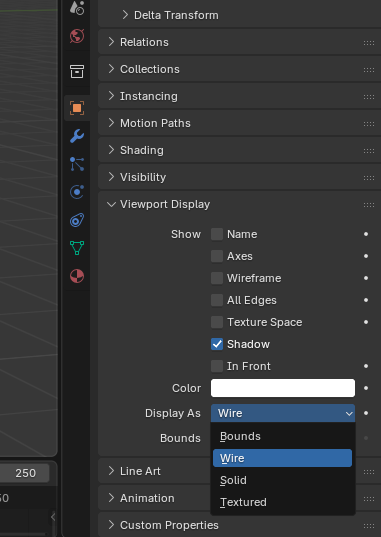
Wireframe
Object properties -> Viewport Display -> Display As -> Wire
Object Manipulation
Cut object
take the object to be carved from, go to the edit mode (wench icon), Add modifier -> Boolean modifier. Then set to "Difference", and pick the correct object. Then drop down arrow at the icons near the boolean type and make it apply.
source: modifiers - How to cut holes in an object using another object? - Blender Stack Exchange
Merge object
can follow the same as cut object, but instead of "Difference", pick "Union"
Merge objects into one object
Select multiple objects, cmd + J
Separate into Two Objects
Enter Edit Mode (Tab)
Make sure you're in Face Select mode (press 3)
Hover over one half and press L (this selects all connected geometry - one half)
Press P → Selection
scale proportionately
- To scale multiple objects proportionally along the X-axis in Blender:
- Select all the objects you want to scale (Shift + click each one, or press 'A' to select all)
- Press S (for Scale), then X (to constrain to X-axis)
- Type a number for the scale factor (e.g., "2" doubles the size, "1.5" increases by 50%) or just drag the mouse until it is the size you want
- Press Enter to confirm
Cursor
Snapping/Unsnapping
If It's Snapping
If your object is snapping to the grid, disable it:
Look at the top center of the viewport for the magnet icon
Click it to turn off snapping (it should no longer be highlighted)
Or press Shift + Tab to toggle snapping on/off
Basic Movement (No Snapping)
Just press G (for Grab/Move) and move your mouse - the object follows smoothly without snapping.
You can constrain movement to specific axes:
G then X - move only along X-axis
G then Y - move only along Y-axis
G then Z - move only along Z-axis
Resources
Lessons
- Don't just overlay object and intersect into each other. Make them union. This avoids having weird shapes inside the printed body, where it should be solid but becomes non-solid.
- Blender seems to be quite inefficient at doing 3D model for 3D printing purposes. The better and more targeted tool is Autodesk Fusion.